Shirt Mockups: Avoiding Common Mistakes for Better Product Presentations
Creating professional-looking shirt designs doesn’t have to be complicated. Shirt Mockups offer a simple, effective way to showcase your work without the need for expensive photoshoots or models. Whether you're a beginner or an experienced designer, using Shirt Mockups can save time and elevate your presentation. However, many users overlook key details that can impact the final result. Understanding these pitfalls and how to avoid them will help you make the most of your mockup experience.
What Are Shirt Mockups and Why Do People Use Them?
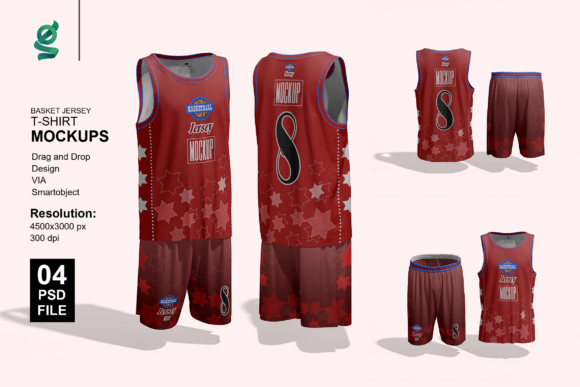
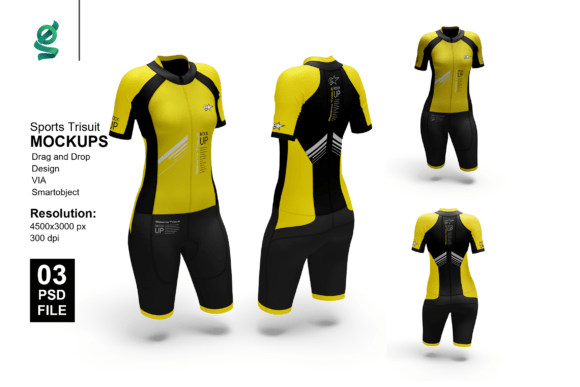
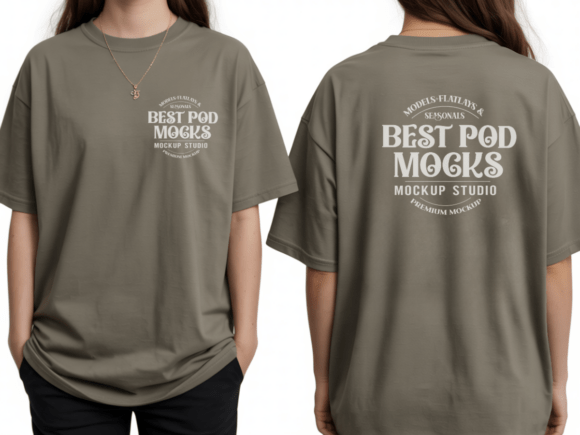
Shirt Mockups are digital templates that allow designers to visualize their artwork on realistic shirt models. With a few clicks, you can insert your design into a Smart Object layer in Adobe Photoshop and instantly see how it looks on a shirt in various settings. These mockups are especially useful for online sellers, graphic designers, and marketers who want to present their products professionally without hiring photographers or models.
Most Shirt Mockup packages include high-resolution PSD files, customizable backgrounds, adjustable lighting, and organized layers. This makes them flexible for different design needs and presentation styles. However, even with these features, many users end up with less-than-ideal results due to common mistakes.
1. Using Low-Quality or Unlicensed Mockups
One of the most frequent issues is downloading free or low-quality mockups from unreliable sources. While they may look good at first glance, these files often lack resolution, proper layer organization, or licensing rights. Using unlicensed mockups can lead to legal issues, while low-resolution images can make your design look blurry or unprofessional.
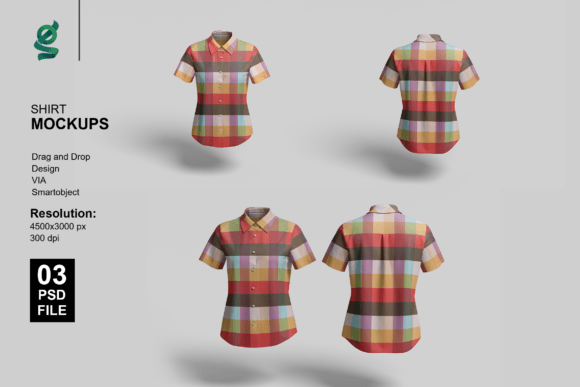
Better approach: Always purchase mockups from reputable marketplaces or creators who clearly state their licensing terms. Check the file resolution (4500x3000 px at 300 dpi is ideal) and ensure layers are well-organized for easy editing.
2. Ignoring Lighting and Background Consistency
Many users place their design into a mockup without adjusting the lighting or background to match their brand style. This can make the final image look inconsistent or out of place, especially if the mockup’s lighting doesn’t align with the rest of your marketing materials.
Better approach: Use the included adjustment layers in your PSD file to tweak brightness, contrast, and shadows. If your brand uses a specific color scheme, customize the background color or add subtle gradients to maintain visual harmony.
3. Overlooking Smart Object Usage
Smart Objects in Photoshop allow for non-destructive editing, meaning you can scale and edit your design without losing quality. Some users either don’t understand how to use them or manually resize the design, which can distort the image or reduce clarity.
Better approach: Double-click the Smart Object layer, paste your design, and save the changes. This ensures your design remains crisp and scalable. Avoid resizing the design directly unless you're certain about the output dimensions.
4. Assuming All Mockups Are Created Equal
Not all Shirt Mockups provide the same level of detail or flexibility. Some include only a single view or limited background options, which can restrict how you present your design. Others may not include realistic fabric textures or model poses that suit your target audience.
Better approach: Choose mockups that offer multiple views (front, back, side), realistic fabric folds, and natural poses. Look for packages that include customizable lighting and background layers for more creative control.
What to Check Before Downloading or Purchasing Shirt Mockups
Before committing to a Shirt Mockup set, consider the following details to ensure it meets your needs:
- File format: Make sure the package includes Adobe Photoshop PSD files with Smart Object support.
- Resolution: Confirm the image dimensions are at least 4500x3000 pixels and 300 dpi for print and web use.
- Layer organization: Well-structured layers make editing easier and faster, especially when working with multiple design variations.
- Licensing: Read the license agreement to ensure you can use the mockups for commercial purposes without attribution.
- Presentation quality: Preview the mockup in use to see how realistic and professional it looks with sample designs.
How to Use Shirt Mockups Effectively
Using Shirt Mockups should be a straightforward process. Here's a simple, effective workflow:
- Open the PSD file in Adobe Photoshop.
- Locate the Smart Object layer labeled for your design placement.
- Double-click the Smart Object to open a new tab for editing.
- Paste your design into this tab, ensuring it aligns properly with the shirt’s shape and folds.
- Save and close the Smart Object tab to update the mockup.
- Adjust lighting, background, and shadows using the included adjustment layers.
- Export your final image in the desired format (PNG or JPEG) at full resolution.
Remember, the goal is to create a realistic and appealing presentation. Don’t just insert your design and call it done. Take a few extra minutes to fine-tune the details for a more polished result.
Realistic Examples of Better Mockup Usage
Consider two online clothing sellers using Shirt Mockups:
- Seller A downloads a free mockup from an unknown site. The image looks decent at first, but when viewed on a website, the shirt appears pixelated. The background doesn’t match the brand’s aesthetic, and there’s no way to adjust the lighting. The final product images look amateurish, leading to lower customer trust.
- Seller B purchases a premium Shirt Mockup set with high-resolution files, Smart Object support, and customizable backgrounds. They spend a few minutes adjusting the lighting and background to match their brand colors. The result is a clean, professional product image that boosts customer confidence and increases sales.
The difference? Attention to detail and choosing the right tools.
Final Thoughts: Make Informed Choices for Better Results
Shirt Mockups are a powerful tool for anyone looking to present shirt designs professionally. But like any tool, their effectiveness depends on how you use them. Avoiding common mistakes—like choosing low-quality files, ignoring lighting adjustments, or misusing Smart Objects—can significantly improve your results.
Always take a moment to review the features of a mockup set before downloading or purchasing. Consider how it fits into your workflow and whether it supports the level of customization you need. With a little care and attention, Shirt Mockups can help you create stunning visuals that truly represent your design work.